جدول المحتويات
( CS POS Card )
From the list of Data Syncs - CS POS - Cards - CS POS Card.
Through this window, we add points of sale (POS) and customize their settings.

We press the New button
Name: We write the name of the POS definition
Code: We assign a code to the point of sale (POS) (the code will be added to the point of sale (POS) settings on the terminal device)
Server: If the point of sale (POS) is on the PC on which the Creative Solutions program is located, we write the IP of the device or we write (127.0.0.1), and if the point of sale is on a sub PC, we write the IP of the subsidiary PC.
Warehouse: We select the warehouse for the point of sale (POS)
Branch: In the case of working with the branches system, we specify the branch of the point of sale (POS).
Sub Account: In case you want to specify a secondary account for the point of sale.
Stopped: To make the Point of Sale (POS) disabled
Accounts tab
Group: through which we define the group of accounts that will be exported to points of sale (POS), for example (customers - or suppliers)
Expenses:
Employees: We define a group of users for the POS
Account descriptors:
Payments: We define a group of payments for POS: https://cserp.info/wiki/en/help/cpospmngroups
Materials tab

Materials: We define the group of materials belonging to the point of sale(POS), and if we leave it blank, it exports all materials to POS.
Language: In the event that we want to export the foreign name of the material, we specify the description that we have specified to write the foreign name of the material from the material card.
Sale price: As for the selling price at the POS, usually the default price is the barcode price, but in cases, a particular point of sale (branch) can have its own price other than the selling price for the rest of the POS, for example, due to the presence of competition from other companies.
In this case, we add a special price for this POS, for example, the sale price of Branch 3 in the material card, and add it to the sale price of the point card, to show this price at the point of sale (POS) .. And if the material does not have a special price (sale price of Branch 3), then the return To the barcode price for the material.
Offers code: We specify the offers code that we have added with offers to be exported to the POS https://cserp.info/wiki/ar/help/cposoffers
Scales: In the case of dealing with barcode scales, we determine the group of scales that we have added
الموازين https://cserp.info/wiki/ar/help/stcscales
مجموعة الموازين https://cserp.info/wiki/ar/help/stcsclsgroups
Muniments tab

Sales Muniment: We define the default sales muniment on which point of sale (POS) invoices will be imported
Sales Returns Muniment: We specify a default sales returns muniment on which the POS invoices will be imported
Purchases Muniment: We define the default purchases muniment on which the POS invoices will be imported
Purchases Returns Muniment: We define a default purchases returns muniment on which the POS invoices will be imported
Attach Muniment: We specify the attachment muniment (rounding)
Receipt Voucher: We specify the muniment of the receipt voucher
Payment Voucher: We specify the payment voucher muniment
Data tab
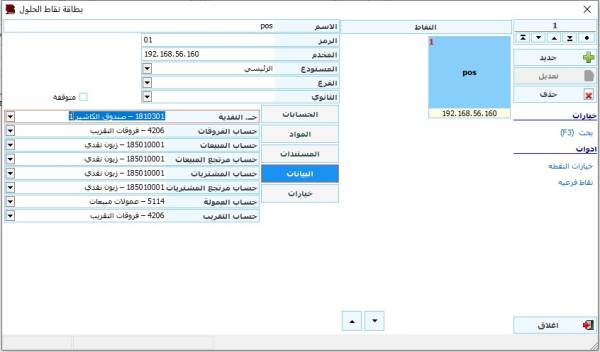
Cash Account: We define the default cash account for the POS.
Differences Account: We define the differences account.
Sales Account: we specify the default account for the invoice account, for example (cash customer)
Sales Returns Account: We specify the default account for the invoice account, for example (cash customer)
Purchases Account: we specify the default account for the invoice account, for example (cash supplier)
Purchases Returns Account: We specify the default account for the invoice account, for example (cash supplier)
Commission Account: We determine the commission account
Rounding Account: We determine the calculation of the rounding differences in case you want to use the approximation
Options tab

Sync current day data: This option activates the synchronization of the bills for the current day, and if this option is not activated, it will import the bills from the previous days only
Export Only (without import): This option exports the settings and materials to the point of sale (POS) without importing the invoices registered in it (such as a point of sale for inquiries only or for employee training)
Tools - POS Options
General tab

Company Name: We write the name of the company or facility.
Welcome msg: The text of the welcome message that will appear on the customer's back screen
Fingerprint Device: We specify the fingerprint device at the point of sale (POS) in order to enter the fingerprint instead of typing the password.
Currency Categories: We define the denominations of the currency used and write them in the following way (500,200,100,50,20,10,5,1).
News Format: To specify the format for displaying the news tape on the customer's screen, "This feature is only available to CSERP users"
Customer Screen Number: to specify the customer display screen number (the second screen, from the Windows display settings you can verify the screen number).
Language: To specify the default language for the point of sale (POS) - for Arabic use: ar - English: en for Turkish: tr.
Allow Exit: To allow exit from the point of sale (POS)
Hide Materials: Hide materials groups from the POS screen and show only the Invoice screen.
تبويب فواتير

رمز اشعار القبض : نقوم بتحديد رمز الاشعار الافتراضي للقبض
رمز اشعار الدفع : نقوم بتحديد رمز الاشعار الافتراضي للدفع
التقريب : بحال اردنا استخدام التقريب بالفاتورة بنقطة البيع. مثال: لأصغر نصف نقوم بوضع ( 0.5 )
من الرقم : لتحديد بداية متسلسل الفاتورة
الى الرقم : لتحديد نهاية متسلسل الفاتورة وبعد انتهاء هذا الرقم يقوم بالعودة للرقم الاول
عدد الفواتير : لتحديد عدد الفواتير التي يستطيع المستخدم فتحها بنفس الوقت (عدد الفواتير المعلقة)
خيار السعر يشمل الضريبة : يقوم هذا الخيار باحتساب السعر المعرف ببطاقة المادة شامل الضريبة
طلب الكمية بعد المادة : لتظهر شاشة طلب الكمية بعد كل ادخال للمادة من نقطة البيع
تأكيد الطباعة : تظهر رسالة للتأكيد من اجل الطباعة او الغاء الطباعة
تبويب الابعاد

تكبير : لتحديد نسبة التكبير لشاشة نقطة البيع لتناسبة معظم مقاسات شاشات أجهزة نقاط البيع
حجم المجموعة : لتحديد حجم مجموعات المواد بشاشة نقطة البيع (بالنسبة المئوية)
حجم المواد : لتحديد حج مربع المادة في شاشة نقطة البيع (بالنسبة المئوية)
حجم الخط : لتحديد حجم الخط
اسم الخط : لتحديد نوع الخط لنقطة البيع
تبويب طباعة

تصميم الطباعة : لتصميم فاتورة نقطة البيع (مبيعات - مر.مبيعات …)
تصميم التحضير : لتصميم فاتورة التحضير